
 Injective
 Celestia
 streamoors
 Sui
Sui Pudgy Penguins
 Bitcoin
 Pearl
Pearl
- Metamask is a popular crypto wallet that works as a browser extension.
- Ethereum is the default network over Metamask, however, other networks like Fantom, BNB Smart chain, and Polygon can be custom added.
Similar to a physical wallet used to store cash and engage in commerce, users need a wallet to store their digital money aka crypto tokens to use dApps and participate in blockchain networks. Metamask is a cryptocurrency wallet with Ethereum as its default network. It supports Ether and ERC-20 tokens, which the users can store, trade, stake, and exchange with other tokens. Metamask Wallet comes as a mobile app for Android and iOS and a browser extension as well.
Fantom network is a smart contract platform similar to Cardano and EOS. However, it uses a unique consensus mechanism known as the Lachesis protocol. Fantom is based on the Directed Acyclic Graph (DAG) model, which was designed to address the challenges of high transaction fees and slow processing time faced by popular chains like Bitcoin and Ethereum. FTM is the native token of the network and it can be purchased or traded against other tokens through a crypto wallet like Metamask.
Installing Metamask Browser Extension
Step 1: You need to visit the official Metamask website to install the web browser extension. This extension can be installed for Chrome, Edge, Opera, Brave, and Mozilla Firefox.
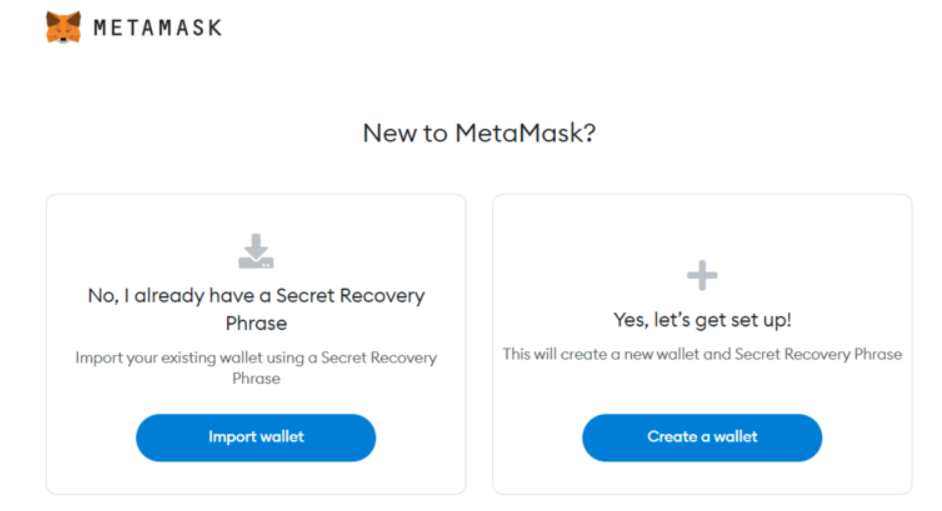
Step 2: Once installed, the following splash screen will be displayed. Click on the Get Started prompt.
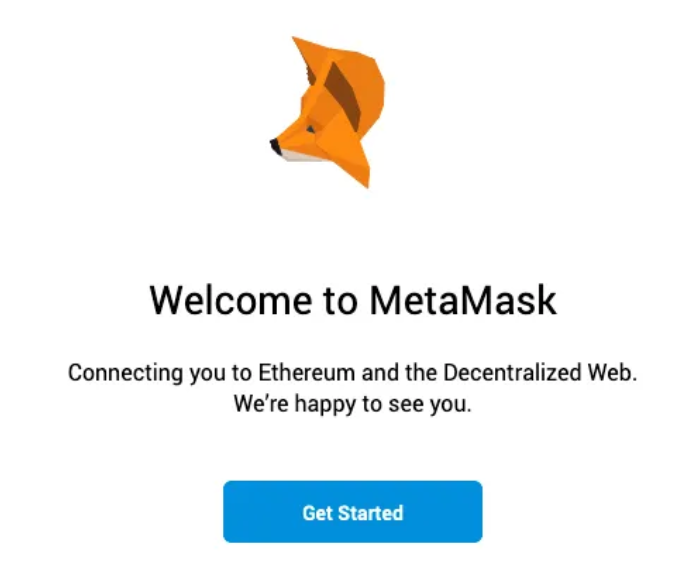
Step 3: Next, the user has to choose among the following two options. We will go with the new user option. However, an existing user of Metamask may directly enter his seed phrase and connect to the wallet.
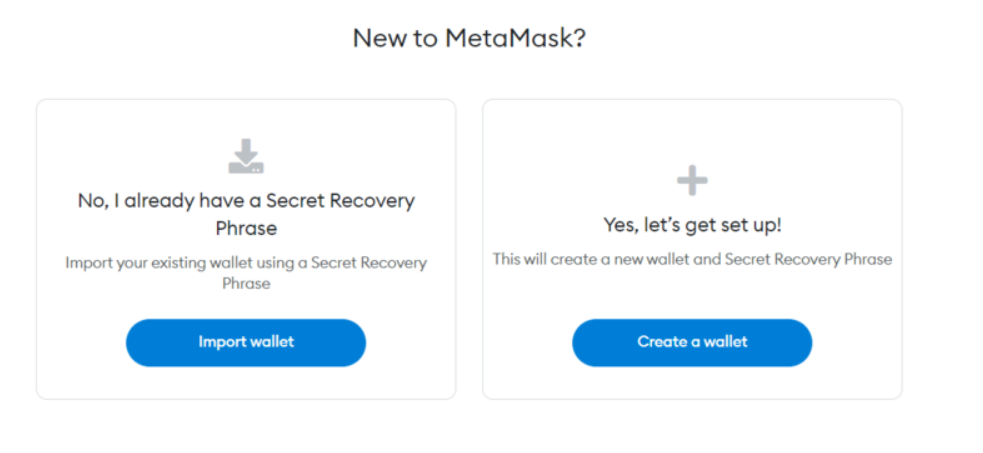
Step 4: The users will be asked to create an 8-character long password, which will be used for logging in. To ensure its safety, it is advised the password have a combination of numbers, letters, and upper and lower cases.
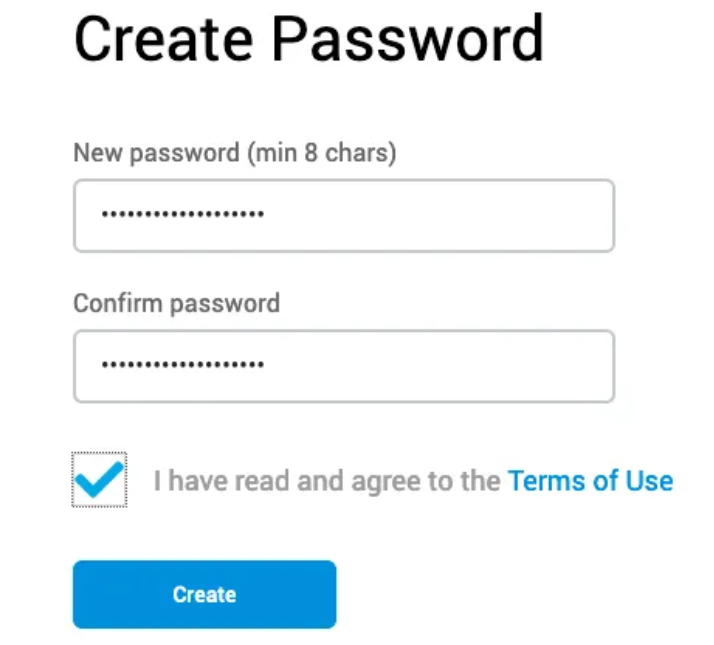
Step 5: The next is the most important as here the users will be provided with a seed phrase, which is a random sequence of 12-24 simple words. This is used as a backup option for users to access their wallet and coins, in case of a file corruption or hardware breakdown.
If you had a wallet on your mobile and it got stolen or you used a web extension and your laptop got crashed, in any scenario, you can regain control of your wallet from a new device, through this seed phrase.
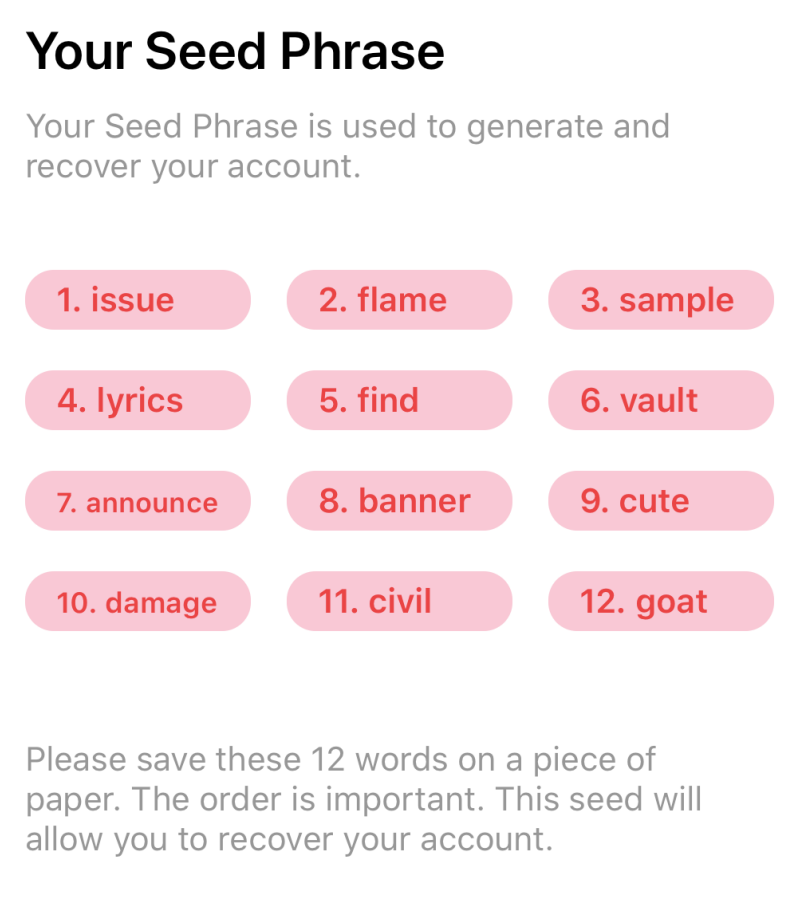
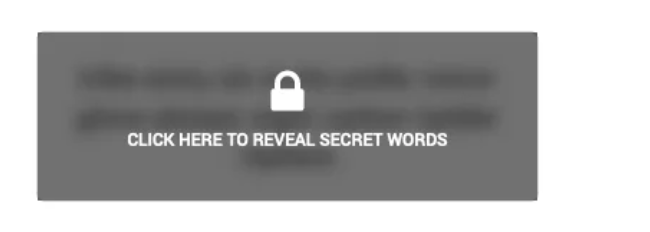
It’s important to remember these words in their order, and it is advised to write them down and keep them in a safe place. The seed phrase is not to be shared with anyone. Someone who knows your seed phrase can access your Ether.
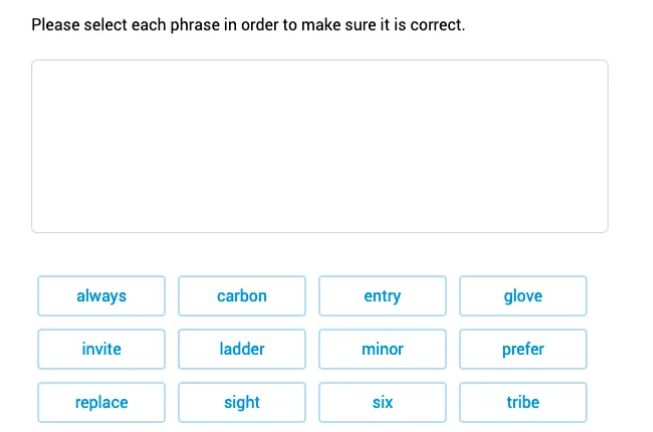
Step 6: Re-enter your seed phrase to confirm it.
Step 7: Your account setup is complete. You can log in to your wallet anytime through the metamask extension icon which will appear on the URL bar.
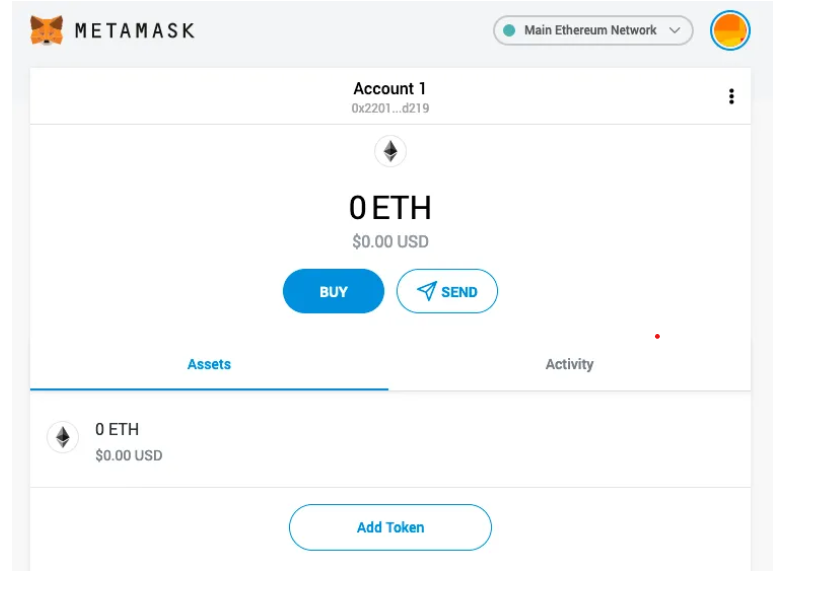
Adding Fantom to Metakask
Fanatom is not the default network in Metamask wallet but it can be added to your account using the following steps.
Step 1: Click on the network dropdown and click on the add network prompt.
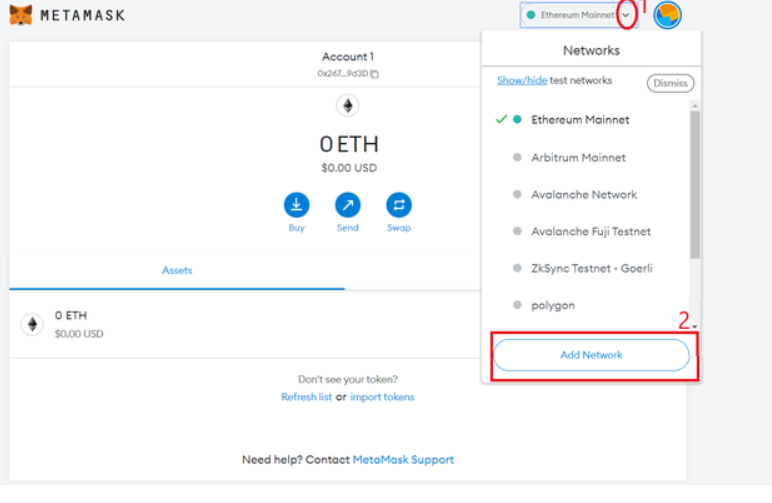
Step 2: Another page will open, which will ask for the network details. Here are the details for the Fantom network. After entering the details, click on the save button.
| New RPC URL | https://rpc.ftm.toolshttps://rpc.fantom.networkhttps://rpc2.fantom.networkhttps://rpc3.fantom.network Any will do |
| Chain ID | 250 |
| Currency Symbol | FTM |
| Block Explorer URL | https://ftmscan.com/ |
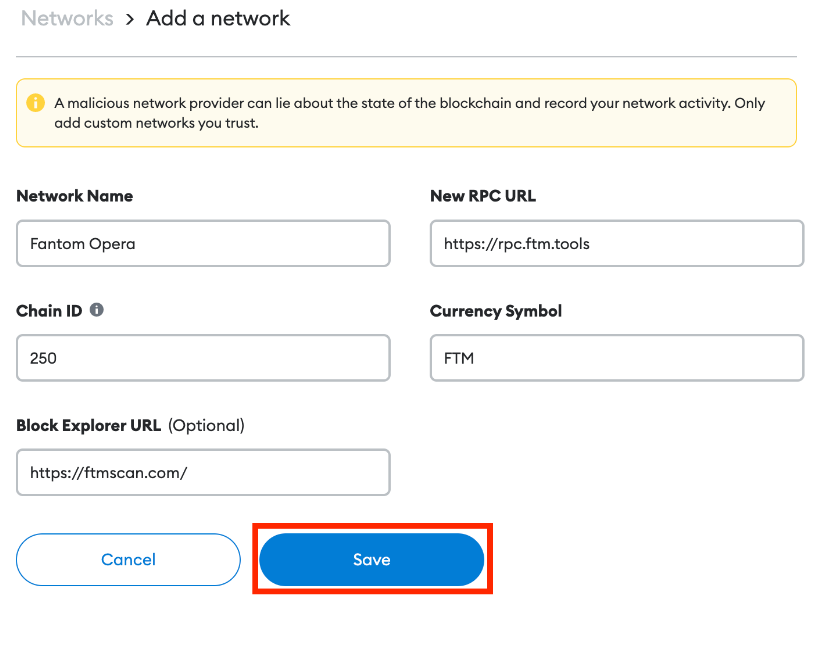
You have added the Fantom network to your wallet.
Final Thoughts
The above steps can be used to set other networks like Polygon, Avalanche, BNB Smart Chain, etc on your Metamask wallet. Through a wallet, you can access the ecosystem of these networks and interact with the various dApps.